Cart 0
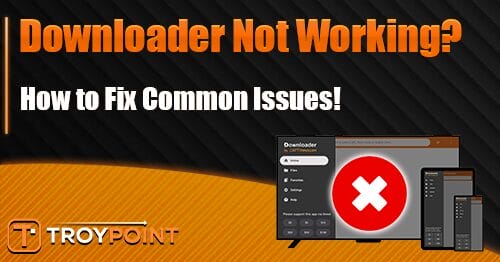

If you’ve been trying to use the Downloader app on your Fire TV or Android TV/Google TV device and running into problems, you’re not alone.
Our TROYPOINT Insider Community has been flooded with reports of Downloader not working, and the causes range from simple connection hiccups to device incompatibility.
Downloader Troubleshooting Video
Get Free Ultimate Stremio Setup Guide
How to Fix Downloader Not Working on Firestick & Android TV
Several issues can prevent the Downloader App from working on Firestick and Google TV devices. Below are the most common problems and how to solve them.
Check Your Fire TV Device First
The most common reason Downloader won’t appear in the Amazon App Store is that you’re using a Fire TV Stick 4K Select. This model runs on Vega OS instead of the standard Fire TV operating system, and it does not support sideloading. Because of that limitation, the Downloader app simply isn’t available for this device.
Not sure which Fire TV you own? Go to your home screen, hover over the gear icon, select My Fire TV, then choose About. In the top right corner, you’ll see your device type listed.

If it reads “Fire TV Stick 4K Select,” sideloading won’t work on your hardware. Consider upgrading to a device like the Onn 4K Pro, which runs Google TV and fully supports sideloading.
Watch Out for Imposter Apps
Another issue showing up on Firestick and Google TV/Android TV devices is fake Downloader apps. Scam developers are creating copycat applications that use the Downloader name to trick users.

Always confirm you’re installing the real Downloader made by AFTVnews.com. On the app store download page, the developer name should read “aftv news.” If you see a different developer listed, skip that app.

Fix Connection Errors
If you open the app, type in a URL or code, and get an “err connection closed” message, your VPN is the most likely cause.

The quickest solution is to disconnect your VPN before loading content through Downloader. Head back to the home screen, open the VPN app, and turn it off. Then relaunch Downloader and try again. After your apps are installed, reconnect the VPN right away.
If you’d rather stay protected during the process, try switching to a different server location inside your VPN app. The one you were connected to may be on a blocklist.
Pick a location close to your physical area for the best speeds. After connecting to the new option, go back into Downloader and test the code again.

Still not working? Restart your streaming device and Wi-Fi router. If that doesn’t solve the problem, uninstall Downloader and then reinstall it through the app store.
After reinstalling, you’ll need to grant permission for unknown apps. When prompted, tap Settings, find Downloader under “Install unknown apps,” and toggle it on.

Fix Parsing Errors
This type of error means the application you’re trying to install isn’t compatible with your streaming device. We’re seeing this happen most often on older Fire TV hardware stuck on OS 5. Newer apps require OS 7 or higher to work properly.
To check which version you’re running, go to Settings > My Fire TV > About and look under “Software Version.” If your device shows OS 5, many of the latest streaming apps won’t install. Upgrading to a newer streaming device or an Android TV box is the best long-term fix.

Similar parsing issues can occur on outdated Google TV systems and older Android TV boxes.
🛑 HURRY – SURFSHARK VPN DISCOUNT
Surfshark VPN Exclusive Discount
Surfshark VPN Exclusive Discount
Your online activity is monitored by your ISP, app/addon/IPTV devs, government, and all websites.
🔒 Become anonymous while streaming & downloading with Surfshark VPN
Save 87% with 24-Month Plan + Get 3 FREE Months
Use on Unlimited Devices & Share 1 Account with Entire Family
CLAIM DEAL HERE
Save the Toolbox Page as a Favorite
Here’s a quick tip to save time in the future. After loading the TROYPOINT Toolbox (code 250931) in Downloader, hold down the OK button on your remote for a few seconds. Select Add current page to favorites and hit Save.
Next time, just open the Downloader menu, tap Favorites, and choose the Toolbox page. It loads instantly without the 5-second wait.

Final Thoughts from Troy
Most Downloader problems come down to VPN interference, device incompatibility, or imposter apps in the store. The fixes are straightforward once you know what to look for.
If you’re still running an older Firestick with OS 5, now may be a good time to consider a hardware upgrade for full access to the latest streaming apps.
Did these solutions help fix your Downloader issues? Let us know in the comments below!
This page includes affiliate links where TROYPOINT may receive a commission at no extra cost to you. Many times, visitors will receive a discount due to the special arrangements made for our fans. Learn more on my Affiliate Disclaimer page.
The official URL for this IPTV service is https://yeah-iptv.com/