Cart 0

This tutorial will show you How To Fix the Kodi Unable to connect Error in less than 1 minute.
Those who use Kodi frequently have likely come across this error message when attempting to install a Kodi addon or Build.
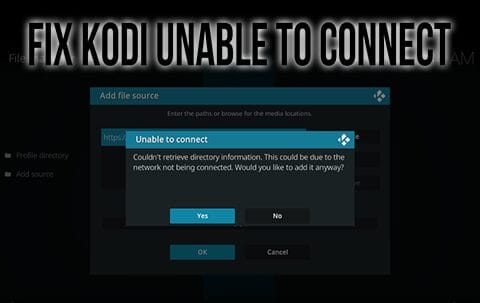
This error occurs when attempting to insert a file source or Repository URL from outside of the official Kodi repository. It reads as follows:
Couldn’t retrieve directory information. This could be due to the network not being connected. Would you like to add it anyway?
Nearly all Kodi users have experienced this error at one time or another and each time is just as frustrating as the last. Oftentimes, however, there is a simple solution to this problem that will only take a minute or less.
In the guide below, we provide 3 methods to fix the Kodi Unable to Connect error message on any device you prefer including the Amazon Firestick, Fire TV, Android TV/Google TV Boxes, PC, mobile phones/tablets, and more.
In the guide below, we are using an Amazon Fire TV Stick 4K Max which is the most popular Kodi device due to its sideloading capabilities.
This guide will also work on any device you have the Kodi software installed on and will only take a minute or less.
How to Fix Kodi Unable To Connect Error
1. Check Internet Connection
The first method for solving this problem is to check your device’s internet connection. Whether you are using a Firestick, Fire TV, Android TV/Google TV Box, or PC, these all require an internet connection to run the Kodi software.
As the error message states, “This could be due to the network not being connected”. So make sure that internet access is available and functioning properly.
For those using an Amazon Firestick, you can find your internet connection status within the Network Settings as pictured below.

If you are certain that you have a stable connection, we can continue to step 2 which is the most likely fix for this error.
2. Check Your URL Information
Most of the time, the Kodi Unable to Connect Error occurs because the host repository URL has been typed incorrectly.
When entering a source name and receiving this error, you are prompted with the following message:

This all-too-familiar screen is a hassle for anyone who has encountered it. However, an incorrect URL is usually the source of the problem.
If you do come across this message and click Yes, we can go back and edit for any punctuation/grammar errors.
In the following instance, I am trying to install the popular Crew Kodi addon, but misspelled the URL. The steps below will show you how to fix this problem.
🛑 HURRY – SURFSHARK VPN DISCOUNT
Surfshark VPN Exclusive Discount
Surfshark VPN Exclusive Discount
Your online activity is monitored by your ISP, app/addon/IPTV devs, government, and all websites.
🔒 Become anonymous while streaming & downloading with Surfshark VPN
Save 87% with 24-Month Plan + Get 3 FREE Months
Use on Unlimited Devices & Share 1 Account with Entire Family
CLAIM DEAL HERE
1. If you received the Unable to Connect error message and clicked Yes, simply right-click on the source and choose Edit source.

2. Click the incorrectly typed URL (In this instance, crew has been misspelled with an extra w).

3. Look for any mistakes you may have made entering. This includes spaces before and after the URL, missed periods, hyphens, backslashes, and more. Change the URL to the proper term and click OK.

4. Now enter a name for the media source and click OK. The file should install properly.

After entering the correct repository URL, you will not see the Kodi unable to connect message and continue installing your addon or build as you normally would.
As noted above, this is the most likely cause for this error message and is usually a simple fix that will only take a couple of seconds.
If you are certain that you input the repository URL properly without any misspellings, there are a couple of other things we can check by following the steps below.
3. Check URL is running properly
If you still receive the Kodi Unable to Connect Error after following the methods above, there is one more alternative.
As most Kodi users know, add-ons and repositories are in a constant state of change. Therefore it is difficult to know whether or not the host URL is currently functioning or not.
If you know your connection is fine and the URL is typed correctly, it may be that the file you are trying to install is no longer working.
We can easily check to make sure it is available by typing in the exact URL into any browser.
Upon typing the URL into your browser, you will observe one of two messages.
1. If the URL is a working source, you will see an “Index of” message which shows the repository zip file for the addon/build you are attempting to install.

2. However, if it is not currently working, you will likely encounter a 404 error or other error messages as displayed below.

When you see “This site can’t be reached” the Add-on or build you are trying to install is not available. We suggest you try installing another add-on or build of your choice.
4. Connect to a Trusted VPN
If all of the options above are not working to fix the Kodi Unable to Connect error and you haven’t already, we strongly suggest connecting to a VPN.
Sometimes, various Internet Service Providers may block access to Kodi addons/builds and the only way to get around these blockades is with a trusted VPN Provider.

Using a VPN has tons of benefits besides removing blocks or geo-restrictions, which include making you completely anonymous so your online data is protected and secure. With our #1 Ranked Provider, there is also a built-in CleanWeb feature that removes all ads/malware for popular apps, APKs, and more.
For more tutorials to get the most out of your Kodi device, check out our popular resource guides below.
Be sure to stay up-to-date with the latest streaming news, reviews, tips, and more by following the TROYPOINT Advisor with updates weekly.
This Advisor provides all the best cord-cutting tips to get the most out of your favorite streaming devices and more.
Click the link below to join the other 800,000 Advisor subscribers.
Free TROYPOINT Advisor
This page includes affiliate links where TROYPOINT may receive a commission at no extra cost to you. Many times, visitors will receive a discount due to the special arrangements made for our fans. Learn more on my Affiliate Disclaimer page.
The official URL for this IPTV service is https://yeah-iptv.com/